
How to make a Burning Bridges AI video
There are three ways to put yourself in the chandelier-lit party. They differ in cost and effort, and above all in how closely the result follows the real scene. Start with the photo, then pick a method.
Updated October 11, 2026
Before you start: the photo that works
Every method starts from one photo, and that photo decides most of the result. Get it right once and you can reuse it for all three methods.
- One subject per photo. Crop group shots so only the person you want is left in the frame.
- Facing the camera. A straight-on face with both eyes visible holds up far better than a profile, especially when the hand passes over the eyes.
- Waist-up or full body. The outfit carries over into the party, so include it.
- Good, even light. Skip heavy filters, sunglasses and hands over the face.
- A clear original. Use the photo itself, not a blurry screenshot of it.
Pets and illustrated characters work too, but results vary more than with people, because the gestures are made for human hands. Use a picture that shows the whole animal or character facing the camera. And only use yourself or people who agreed to it: no public figures, no one under 18.
Method 1 – One-click generator (one photo, original song)
This is the most direct method: the generator uses the party scene from the music video as its base and replaces the lead with the person in your photo, so the handheld camera, the crowd, the cup raise and the hand-over-the-eyes look all land where they should, with the original song.
1Upload one photo
Scroll to the generator at the top of the home page and add your photo. One person, pet or character, facing the camera.
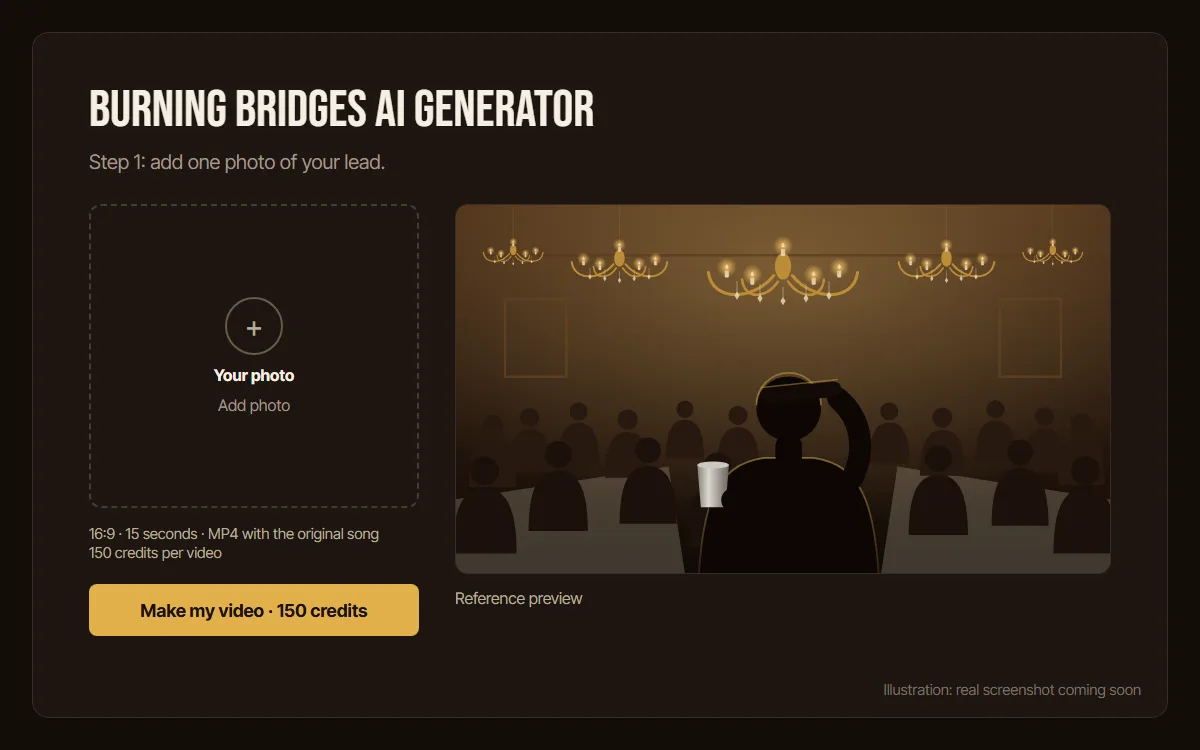
2Press Make my video
One click, 150 credits. The video takes about 7 minutes and is saved to My videos, so you can leave the page while it renders. If it fails, the credits go straight back.
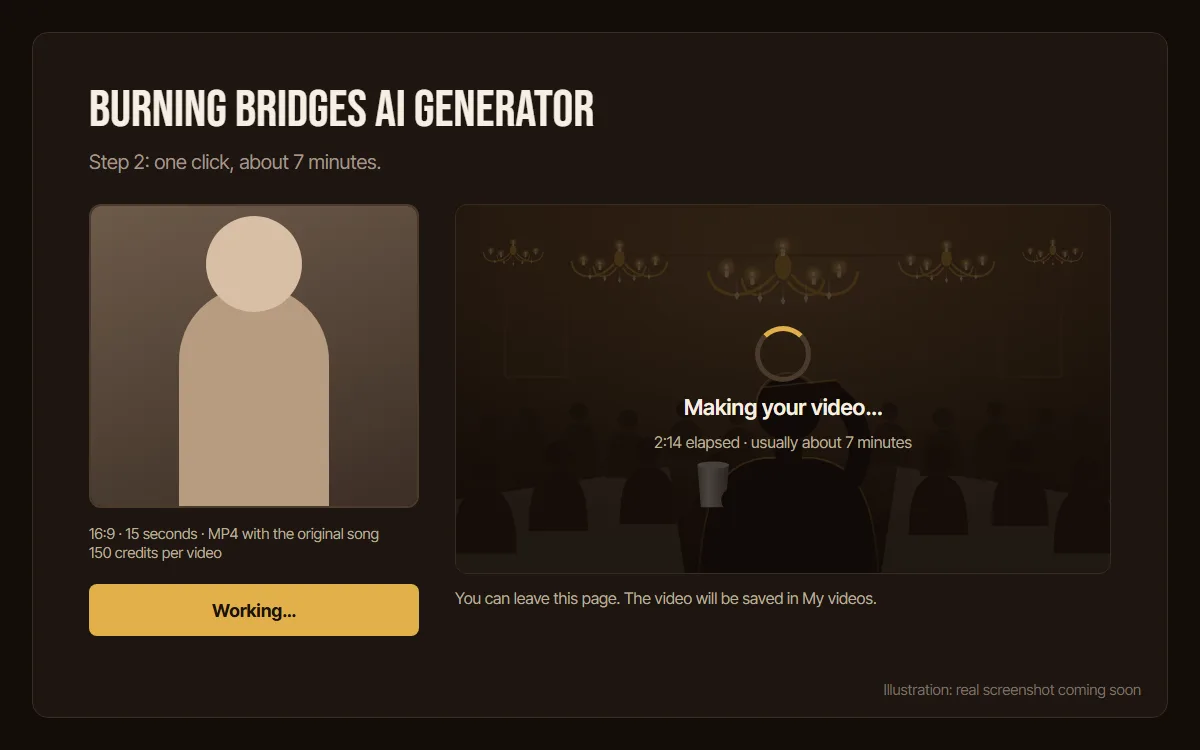
3Download and post
Play the finished clip, then download the MP4 and share it with your friends.
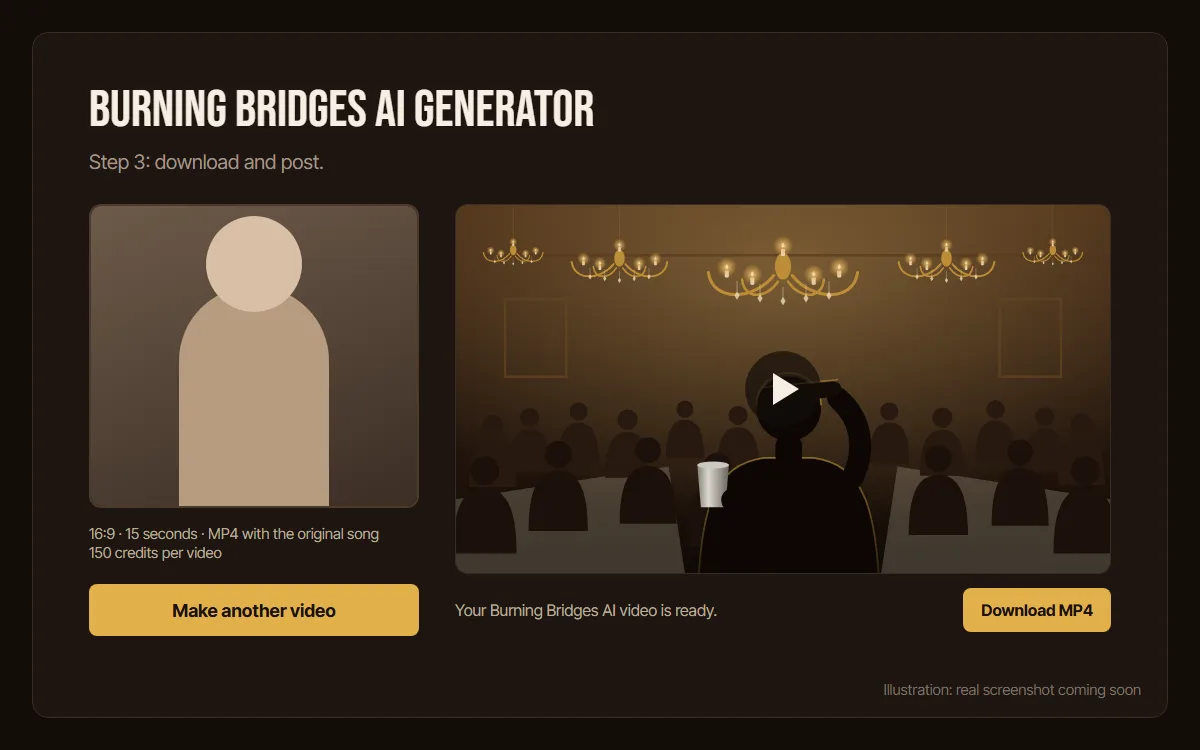
- Time
- About 7 minutes
- Output
- 16:9 MP4, 15 seconds, original song
- Cost
- 150 credits per video, refunded if it fails
- Watermark
- None
Method 2 – Motion control with a reference clip (Kling, Genjutsu)
Motion-control tools copy the movement of a reference clip onto the person in your photo. Kling Motion Control takes one image plus a 3 to 30 second reference video; Higgsfield's Genjutsu takes a 4 to 30 second video plus reference images. Both are general tools, so you supply the clip and do the setup yourself.
- Cut a short reference clip of the party section that clearly shows the lead's gestures. Only use footage you have permission to use.
- Open the motion-control tool, upload your photo as the character image and the clip as the motion reference.
- Add a short prompt that names the lead to replace and keeps the room, the crowd and the camera (the motion reference prompt on the prompts page is a good start).
- Generate, check the face during the hand-over-the-eyes moment, then add the sound in your editor if the tool drops it.
The catch
- You need your own reference clip, and cutting and timing it is up to you.
- Crowded shots are hard: the tool may swap a guest instead of the lead, or blend faces.
- Audio depends on the tool and settings; you may have to add and line up the song yourself.
- Credits are charged per attempt, and a good result often takes a few tries.
Method 3 – Write your own prompt (Seedance, Kling, Veo)
If you would rather build it from scratch, any current video model can get close to the look. Seedance, Kling and Veo all take a text prompt plus an optional start image. Starting from your photo (image-to-video) keeps your face far closer than text alone.
Start with this prompt and adjust the outfit:
A warm, candle-lit private dining room in an upscale restaurant at night: crystal chandeliers, dark wood, long tables with white tablecloths, a crowd of friends in streetwear and leather jackets celebrating behind the lead. The person from the image is the lead, standing closest to the camera and holding a silver metal cup. Keep the exact face, hairstyle, skin tone, body shape, outfit and accessories from the image in every frame. The lead talks to the camera with a confident grin, raises a silver metal cup toward the lens, waves at friends, then lifts the free hand flat above the eyes and looks around the room as if searching for someone, and finally points at the camera with the cup still in the other hand. Handheld camera close to the lead at chest height, slight natural sway, one continuous shot, no cuts. Warm amber color grade. No captions, no subtitles, no text, no logos, no watermark.
Variants for the “Where she at?” gesture, pets, original characters and couples, plus a negative prompt and settings, are on the Burning Bridges AI prompts page.
Expect randomness. Without a reference clip the model invents the room, the crowd and the moves on every run, so you get a party that looks similar, never the real scene. Budget several attempts and keep the best one.
Common problems
- The face doesn't look like you
- Use a sharper, front-facing photo with even light, and crop so the face is larger in the frame. Remove sunglasses and heavy filters.
- The face changes when the hand covers the eyes
- The gesture hides half the face for a moment, so the model has to rebuild it afterwards. A clear photo with visible hair and outfit helps it come back as you. In prompts, ask to keep the same identity before, during and after the gesture.
- The original performer or a guest shows through
- With motion-control tools, use a tighter clip where the lead is the biggest person in frame and describe the lead's outfit in the prompt. With the generator, email us within 7 days and we will review the video.
- The song is out of sync
- Prompt videos and some motion-control outputs are not timed to the track. Line up the start in your editor. The generator keeps the original song in sync.
Which method should you pick?
| Compare | One-click generator | Motion control | Your own prompt |
|---|---|---|---|
| Cost | 150 credits per video | Paid credits per attempt | Free tiers, then paid credits |
| Time | About 7 minutes | Setup plus several attempts | Varies, several attempts |
| Scene and moves | The real party scene | Your clip, if the swap holds | Invented, only similar |
| What you need | One photo | Photo, clip and prompt | Photo and prompt |
| Audio | Original song, in sync | Depends on the tool | Add it yourself |
Short version: if you want the real scene with one photo and no setup, use the generator. If you like tinkering and already use Kling or Higgsfield, try motion control. If you only want the vibe, write a prompt.
How-to FAQ
How long does it take to make a Burning Bridges AI video?
With the generator on this site, about 7 minutes from one click. Motion-control tools need a few minutes of setup plus their render time, usually over several attempts. Prompting from scratch takes the longest, because the result changes on every run.
Can I make the Burning Bridges AI video for free?
Some video models have free tiers you can use with the prompts on this site, but without a reference clip the result only looks similar to the real scene. The generator here uses credits: a video costs 150 credits, and packs start at $9.90 for two videos.
Is there a CapCut template for Burning Bridges AI?
We couldn't find a reliable one as of October 2026, and templates come and go. CapCut is still handy for trimming the finished clip or adding captions before you post.
What photo should I use?
One subject, facing the camera, in good light, waist-up or full body so the outfit carries over. Crop group photos first, and skip sunglasses and filters.
Ready to run the party?
Upload one photo and get a 15-second MP4 of you in the chandelier room, with the original song.